
Chrome Extension
Bookmark Bastion
A workspace-based bookmark manager for Chromium browsers. No account, no server, no tracking.
Get it on GitHub
Features
Save in one click
Use the toolbar button, Alt+Shift+S or the right-click menu, and file the page into one or more workspaces.
Workspaces and folders
Organise bookmarks into folders inside workspaces, and put the same bookmark in several places without making copies.
Notes, tags and search
Add descriptions, notes and tags to any bookmark, then search across all of it. Start a word with # to search tags only.
Encrypted saved logins
Keep usernames, passwords and two-factor keys encrypted with a passphrase only you know. Pro lets one bookmark hold several accounts.
Notes encrypted on demand
Lock a single note with the padlock beside it. Pro can encrypt the whole library, including titles, addresses, tags and workspace names.
Import your browser bookmarks
Bring your existing bookmarks in on first run, or later from Settings. Pages you already have are never copied twice.
Export and move
Export everything, or just one workspace or folder, to a JSON file. Encrypted logins and notes stay encrypted in the file.
Smartspaces and QR codes
Sort bookmarks by tag into smartspaces like the built-in Task Manager. Scan a QR picture to add a bookmark, or show any bookmark as a QR code.
Light and dark mode
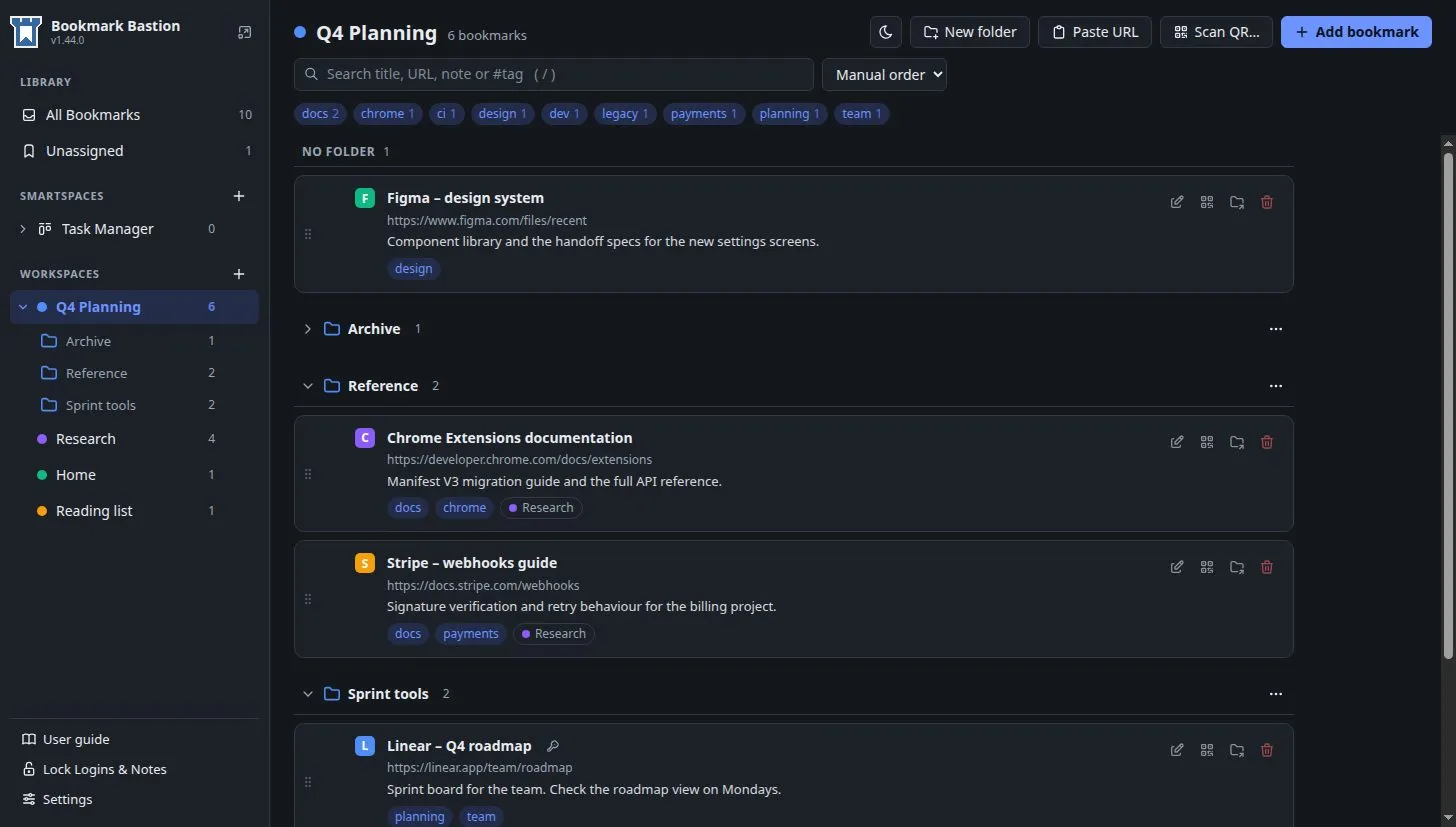
Match your system, or pick light or dark yourself. The theme button above the list cycles through them.
Keyboard shortcuts
Alt+Shift+S saves the page, Alt+Shift+M opens the manager, Alt+Shift+L fills a saved login, and / jumps to search.
Folder icons
Over 6,000 icons, in outline or filled style, tinted to match their workspace.
Private by design
No account, no server, no tracking. Your library stays on your computer.
What it is
Bookmark Bastion is a bookmark manager that lives in your browser and keeps everything on your computer. There’s no account to create, no server to trust and nothing phoning home. Your bookmarks are yours, which feels like it shouldn’t be a selling point, and yet here we are.
It’s built around workspaces, so work, research, home and the dreaded “reading list” can each have their own space, with folders inside. Add notes and tags to a bookmark, search across all of it, and keep the logins you’d otherwise lose in a spreadsheet encrypted behind a passphrase that only you know.
Bring your bookmarks with you
On a fresh install the manager offers to import your browser bookmarks right away. You can skip it and do it later from Settings → Backup & transfer. The extension only asks for the browser’s optional bookmarks permission to read them, and hands the permission back when the import closes.
You choose how they land:
- Workspaces with folders: each top-level folder becomes a workspace, and its sub-folders become that workspace’s folders.
- A workspace per folder: each top-level folder becomes a workspace, with its contents flattened inside.
- One “Imported Bookmarks” workspace: each top-level folder becomes a folder in that workspace.
- Just add them, flat: everything goes into All Bookmarks, with no workspaces or folders.
A page you already have isn’t copied: the workspace points at your existing bookmark and keeps your title and note. Importing twice changes nothing, so you can’t make a mess by clicking it again.
Export, back up and move
Settings → Backup & transfer → Export JSON saves your bookmarks, descriptions, notes, tags, workspaces, folders with their icons, and settings to a single file. You can also export just one workspace or one folder.
If you have saved logins or locked notes, you’re asked whether to include them. They stay encrypted, and the file never contains your passphrase or a plain-text password. To import them somewhere else you need the passphrase used at export time, and a wrong one imports nothing.
Nothing syncs between devices, on purpose. To move to a new computer, export on the old one and import on the new one. Pro can also make automatic backups on a schedule.
Privacy and security
- No account, no server, no tracking. Your library stays on your computer.
- Saved logins are encrypted with a passphrase only you know: usernames, passwords and two-factor keys. That includes every account on a bookmark that has several.
- Notes are encrypted on demand. Use the padlock beside a note to lock just that one. A locked note shows as “Encrypted note” and stays out of search. Pro can also encrypt titles, addresses, other notes, tags and workspace names, so the whole library is covered.
- The passphrase is never stored. It must be at least 12 characters, and there is no recovery. Forget it and the locked logins and notes are gone. That’s the price of nobody else, including me, being able to read them.
- It locks itself. The vault locks after 15 minutes idle by default (or 5, 30 or 60 minutes, or only when the browser closes), and when your computer’s screen locks. The Lock Logins & Notes button locks it right now.
- The clipboard is wiped. Copied passwords and codes are cleared after 30 seconds by default.
- Offline licensing. Pro license keys are checked locally, with no account and no internet connection.
- Updates are your call. The extension only contacts GitHub when you press “Check for updates”.
More than one account on a site
A site with more than one user behind the same sign-in page doesn’t need a bookmark per user. With Pro, Add another account (in the Add / Edit dialog or the pop-up) gives a bookmark a second set of username, password and authenticator key, up to 20 in all, and you can move them up and down or remove them.
Filling from the pop-up shows a list of the usernames next to Fill, with the one you used last
already selected. Alt+Shift+L on such a bookmark opens the pop-up instead of guessing which account
you mean, and the Copy menu on a card names the account each item belongs to. The free version keeps
one account per bookmark, and accounts you’ve already saved stay readable if a license ends.
Everything else
- Smartspaces sort bookmarks by tag instead of by hand. The built-in Task Manager has todo, in-progress, blocked, closed and done.
- QR codes: scan a picture of a QR code, drop it on the manager or paste a screenshot to add a bookmark. Pictures are read on your device and not uploaded or kept. You can also show any bookmark as a QR code, or read an authenticator setup QR picture into a login.
- Keyboard shortcuts: Alt+Shift+S saves the current page, Alt+Shift+M opens the manager,
Alt+Shift+L fills a saved login, and
/jumps to search. - Folder icons: over 6,000 icons, in outline or filled style, tinted to match their workspace.
- Light and dark mode: match your system, or pick light or dark yourself with the theme button above the list or in Settings. The gallery at the bottom of the page shows both.
Install it
Bookmark Bastion isn’t in a web store, so you install it yourself. It takes about a minute:
- Download
bookmark-bastion-v1.47.0.zipfrom the latest release. You can check it againstSHA256SUMS.txtif you like to be careful (I approve). - Unzip it into a permanent folder.
manifest.jsonmust be directly inside that folder. - Open your browser’s extensions page, for example
chrome://extensions. - Turn on Developer mode.
- Click Load unpacked and choose the folder.
- Pin the extension and start the first-run import of your existing bookmarks.
It needs a Chromium-based browser, version 110 or newer. Firefox and Safari aren’t supported.
To update, export a backup first, unzip the new release over the same folder, then reload the extension. Removing the extension also deletes the library stored with it, so export a backup before you do that.
Free and Pro
The core is free: bookmarking, import and export, notes encrypted on demand, up to 5 saved logins, the default smartspace, and one QR picture at a time.
Pro adds unlimited saved logins, several accounts on one bookmark, library-wide encryption, browser sign-in prompt answers, custom smartspaces, up to 10 QR pictures at a time, multi-select and dragging a selection, browser history import, and automatic backups. A 1-year license is $5 and a lifetime license is $10, available through Ko-fi.
Without a license, nothing you’ve already saved is hidden or deleted.
Documentation
The user guide and the tutorials live in the GitHub repository, along with the changelog and every release. The tutorials cover a sample library, export and import, workspaces and folders, saving logins and activating Pro.
Gallery
Specifications
- Version
- 1.47.0
- Platform
- Chromium browsers, version 110 or newer
- Works in
- Chrome, Edge, Brave, Vivaldi, Opera and others
- Themes
- Light, dark or match your system
- License
- Free to install and use, not to change

